Sometimes you have a PCF Code Component — for example a button or a calendar — and need to open a custom page when the user selects it. That custom page might be used to display more information, create a new record, or edit an existing one.
Normally, with the client API, you would use Xrm.Navigation.navigateTo() to navigate to a table list, table record, HTML web resource, or custom page.
It also lets you pass useful options:
pageInputto define the type of page being opened- record context via
entityNameand the selected record GUID navigationOptionsto control whether it opens inline, in a centered dialog, or in a side dialog- a success callback for any follow-up logic
This is a core piece of functionality, especially when working with custom pages.
Important: this approach relies on undocumented behavior in the PCF component API. It is not officially supported by Microsoft, so it should be used with caution and tested carefully before relying on it in production.
Business scenario
You have a PCF Code Component, let’s say for instance a button or a calendar, and your requirement is that on select of that button or a cell in the calendar, you need to open a custom page that could be used to provide further information, create new records, or edit existing ones.
The problem
Microsoft provides only a limited subset of functionality for code components. A quick look at the component API reference shows that they do not provide the navigateTo functionality for PCF components.
However, I needed to meet this requirement for a specific scenario. After checking online and finding very little on how to achieve it, I started investigating how the component API integrates with Power Platform. Using browser dev tools, I monitored the invocation of Xrm.Navigation.openForm() from the PCF context, paying particular attention to the Navigation object and its properties.
That is where I found that navigateTo() is actually supplied — it is just undocumented. In fact, there were more functions available than the documented PCF surface would suggest.
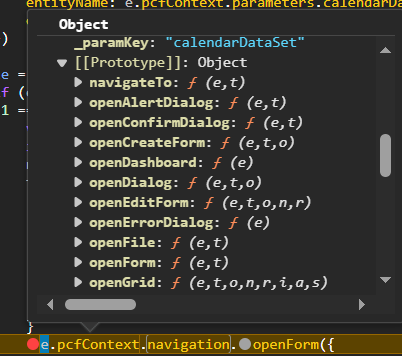
Navigation Object properties provided by monitoring an onclick handler via Dev Tools.
The second problem is that even though the function appears to exist, trying to use it directly in your PCF code still gives you an error. That is because the PCF component API acts as a wrapper over the existing client API functionality, but navigateTo() is not exposed in the supplied typings for components.

navigateTo error when called in a PCF Code Component.
How to implement navigateTo()
As part of the PCF code component files, Microsoft supplies a file named componentframework.d.ts. You can usually find it under:
PCFComponentRootFolder\node_modules\@types\powerapps-component-framework
Alternatively, in VS Code you can Ctrl + click the Navigation call in your code to open the component framework file directly.
To make this work, the navigateTo() functionality needs to be defined there. Before adding the function itself, you first need to define the helper interfaces it uses.
1. Add pageInput
Scroll down to the NavigationApi namespace, or Ctrl + click an existing NavigationApi call. Inside that namespace, add the parameters that will be supplied to the navigateTo() function.
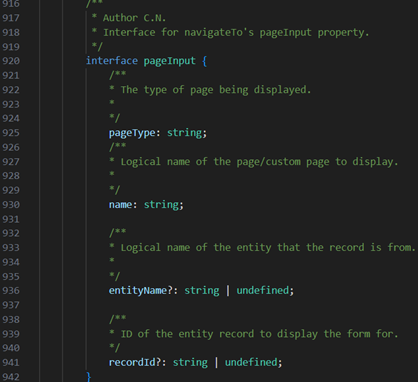
pageInput interface added to component framework.
// Interface for navigateTo's pageInput property.
interface pageInput {
  pageType: string; // The type of page being displayed.
  name: string; // Logical name of the page/custom page to display.
  entityName?: string | undefined; // Logical name of the entity that the record is from.
  recordId?: string | undefined; // ID of the entity record to display the form for.
}
The ? denotes that these are optional properties.
2. Add NavigationOptions
Next, add the interface for the navigation options.
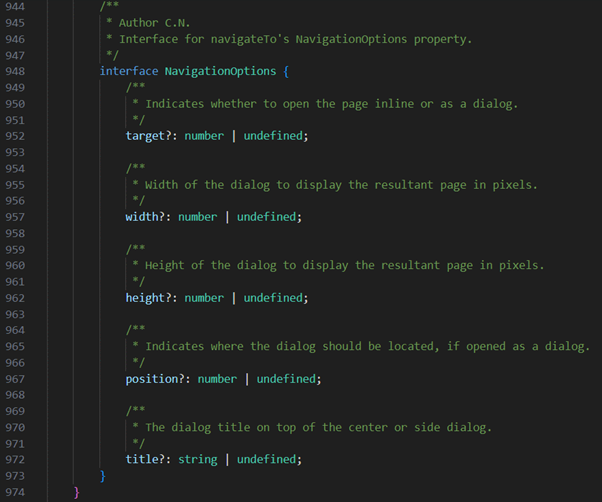
NavigationOptions interface added to component framework.
// Interface for navigateTo's NavigationOptions property.
interface NavigationOptions {
  target?: number | undefined; // Indicates whether to open the page inline or as a dialog.
  width?: number | undefined; // Width of the dialog to display the resultant page in pixels.
  height?: number | undefined; // Height of the dialog to display the resultant page in pixels.
  position?: number | undefined; // Indicates where the dialog should be located, if opened as a dialog.
  title?: string | undefined; // The dialog title on top of the center or side dialog.
}
3. Add navigateTo() to the Navigation interface
Now go to the Navigation interface itself, typically higher up in the component framework file, and create the navigateTo() function signature.

navigateTo function added to component framework Navigation interface.
navigateTo(
  pageInput: NavigationApi.pageInput,
  navigationOptions?: NavigationApi.NavigationOptions
): void;
If NavigationOptions is not supplied when calling this function, it opens the page inline/full screen by default.
4. Use it in your click handler
Once the typings are in place, all that remains is to implement your logic in the relevant click handler. At that point navigateTo() will no longer show an error in your PCF code.

Custom page navigateTo code example.
Once uploaded, you should see the custom page you specify open as expected.
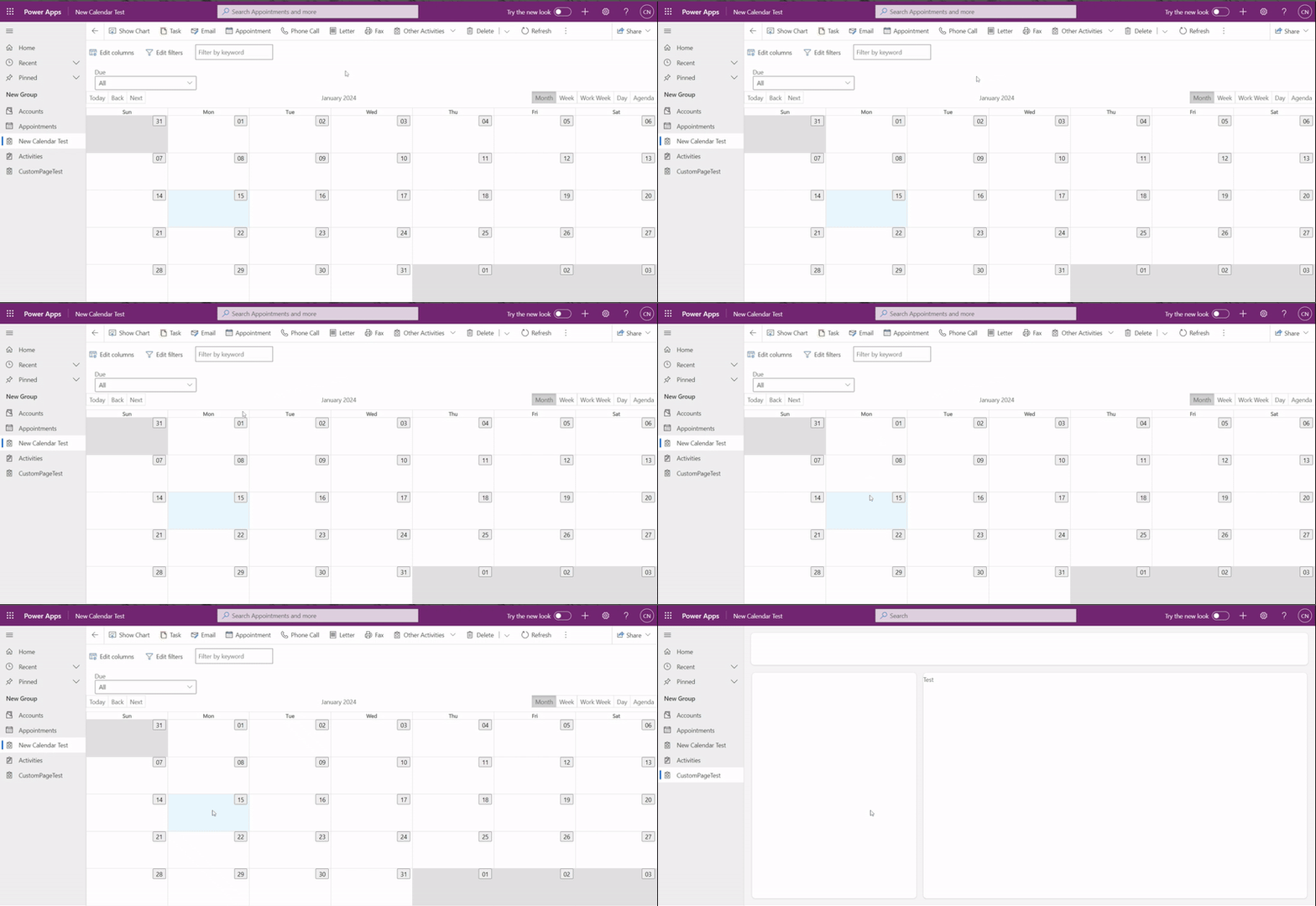
Demonstration of this working in a Model-Driven App when a calendar cell is selected.
Final thoughts
This is a useful technique when you need custom page navigation from a PCF code component and the documented API surface falls short. That said, because it depends on undocumented behavior, it should be treated as a workaround rather than a guaranteed platform capability.
Use it carefully, validate it thoroughly, and keep in mind that future platform changes could affect it.